Sooner or later a prompt in production will produce something it should not: a made-up fact, a promise the business cannot keep, an action item nobody agreed to. What matters then is how fast you can see exactly what happened, stop it if needed, and make sure the fix sticks. This guide walks through doing that in InsightPrompts.
1. The app files a flag
Applications that call InsightPrompts can report a bad output with the same app token they use to fetch prompts. A flag carries the
prompt, the version, the trace_id of the call, a severity from sev1 to sev4, a category, a
note from the person who spotted it, and the environment. It also carries the evidence: the input variables, the rendered template, the
system prompt, the output text, and the model provider, model and parameters that were used. The app sends that evidence with the flag,
so it is only as complete as the app makes it: a client that keeps the rendered prompt and the output it received from each call can pass
them straight on.
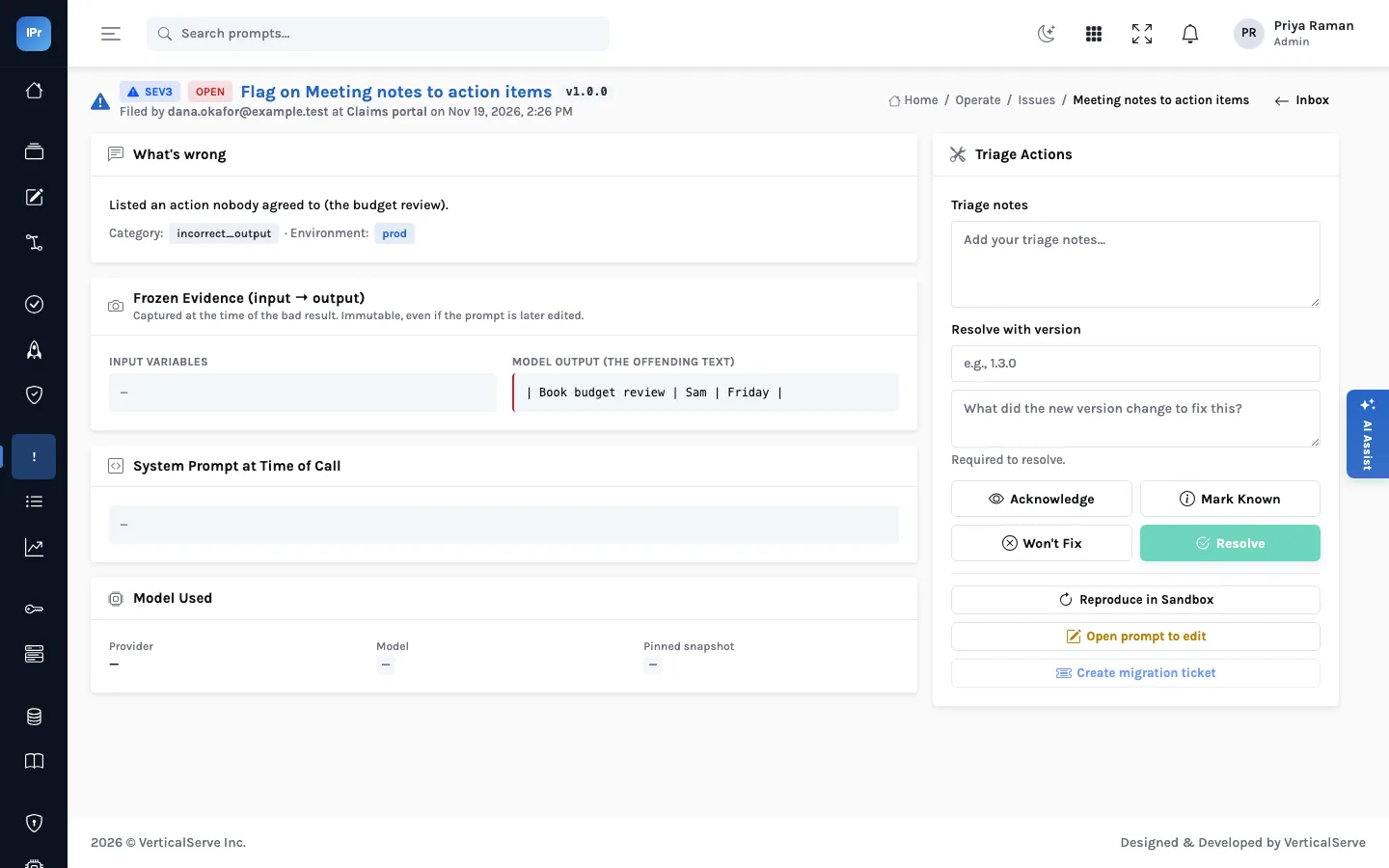
That evidence is frozen. It is stored with the flag and stays exactly as captured, even after the prompt is edited, a new version is certified or a label moves. Filing a flag also routes a notification by severity: a Slack message to a channel chosen by severity when a Slack token is configured, an email envelope to the technical approver (logged only, as email is not wired yet), and alerts to anyone subscribed to flags on that prompt.
2. Triage
Open flags appear under Operate → Issues and on the home page of whoever approves the prompt. Filter by state, severity and technical approver. Each flag offers four decisions:
| Action | State afterwards | Use it when |
|---|---|---|
| Acknowledge | triaged | You have seen it and are investigating |
| Mark known | known | It is an existing, documented limitation |
| Won't fix | wontfix | The output was acceptable, or the cost of a fix outweighs it |
| Resolve | fixed | A new version addresses it. You must name that version, and it must be a version of this prompt |
Every decision records who made it, when, their triage notes, and the state it moved from, as an audit event on the prompt.
3. Contain it, if you need to
For a serious flag the quickest containment is usually a rollback: an admin or the technical approver rolls @prod back one
step from the prompt's Labels & history tab, and the next call from every app resolves the previous version. Rollback walks back through
the label's history rather than toggling. It checks that the earlier version is still certified and not retired, but skips separation of
duties and the evaluation check, because that version already served.
Rollback is the right tool when the previous version was fine. If the problem is older than the last release, or the prompt should not answer at all for a while, the choices are a second rollback, or retiring the version so consumers get a 410 answer instead of an output. Make that call deliberately: applications must handle a refusal without breaking.
4. Fix it properly
Reproduce first. Because the flag kept the input variables, you can paste them into the Test bench and run the same version against the same input. Then:
- Write the change as a new version in the Studio, with a changelog that names the flag.
- Add a golden-set row built from the flagged case (with synthetic data in place of anything personal), so the evaluation will catch the regression from now on.
- Submit, have a second person certify, and evaluate. The @prod gate compares the new score with production's.
- Promote @prod through the gate (or request it through Reviews).
- Resolve the flag, naming the new version.
The budget review nobody agreed to
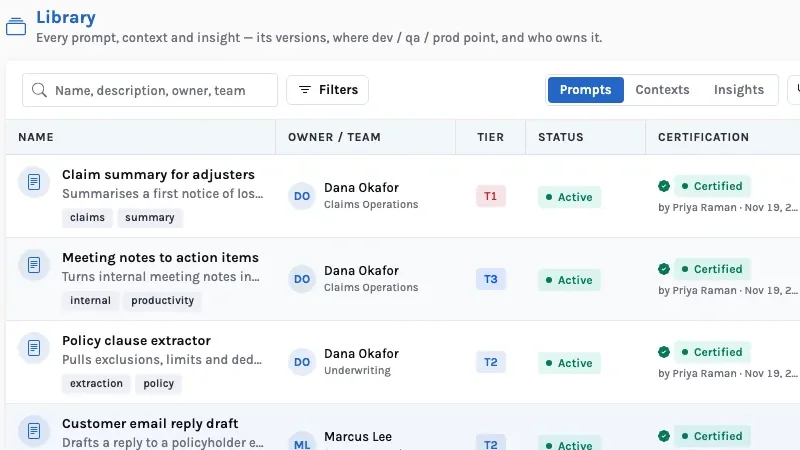
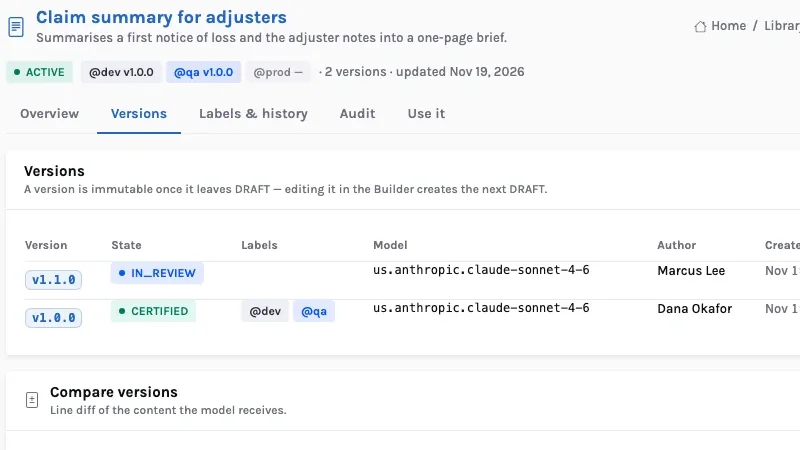
The claims team uses an internal Tier 3 prompt, Meeting notes to action items, through the claims portal. Dana Okafor notices it listed "Book budget review, Sam, Friday", an action that was discussed and dropped. She flags it from the portal as sev3, category incorrect output, on @prod v1.0.0.
Priya Raman, the technical approver, sees it in Open issues and acknowledges it. The frozen evidence shows the system prompt said "List only actions that were agreed", but the notes used the word "maybe" in a way the model read as agreement. Dana writes v1.1.0, which tells the model to skip items marked maybe, possibly or to be confirmed, and adds the flagged notes as a golden row. After certification and promotion, Priya resolves the flag with v1.1.0.
5. Learn from the pattern
Feedback (thumbs up or down with a comment, from people or apps) sits next to flags under Issues, and Analytics shows quality alongside usage, latency and spend for each prompt and version. If one prompt collects flags of the same category, that is a sign its golden set is missing a case, or that the prompt is being used for something it was not written for.
A severity guide you can adapt
The product records the severity; what each level means is your policy. A starting point:
| Severity | Typical meaning | Typical first move |
|---|---|---|
| sev1 | Harmful, unlawful or wrong output that reached customers or a decision | Roll back now, then investigate |
| sev2 | Wrong output that reached a person but was caught before harm | Acknowledge the same day; decide on rollback |
| sev3 | Wrong or unhelpful, low impact | Acknowledge; fix in the next version |
| sev4 | Style, tone, minor | Batch with other changes |
Checklist for the person on call
- Open the flag and read the frozen evidence before the current prompt: the question is what production said then.
- Check the trace by its
trace_idfor the version, app and environment. - Look for other open flags on the same prompt and version; one complaint may be a pattern.
- Decide containment: nothing, rollback, or retire.
- Acknowledge the flag so the reporter and other reviewers can see someone owns it.
- Write the fix as a new version with a golden row from the case, and resolve the flag with that version number.
Frequently asked questions
Can a person flag an output, or only an app?
Flags are filed by apps, with their app token, and can name the person who reported it. People can also leave feedback (thumbs up or down with a comment), which shows next to flags under Issues.
Can we resolve a flag without a new version?
Resolving requires naming a version of the same prompt, which is checked. If no change is needed, use Mark known or Won't fix instead; both keep the record and the reason.
Is the frozen evidence personal data?
It may well be, because it is whatever input and output the app sent. Ask your apps to send only what triage needs, and handle the InsightPrompts database under the same rules as the application's own data.
trace_id they received when they flag, and that at least two people can certify each critical prompt.